QR Menu
Scan, read, order. In any language.
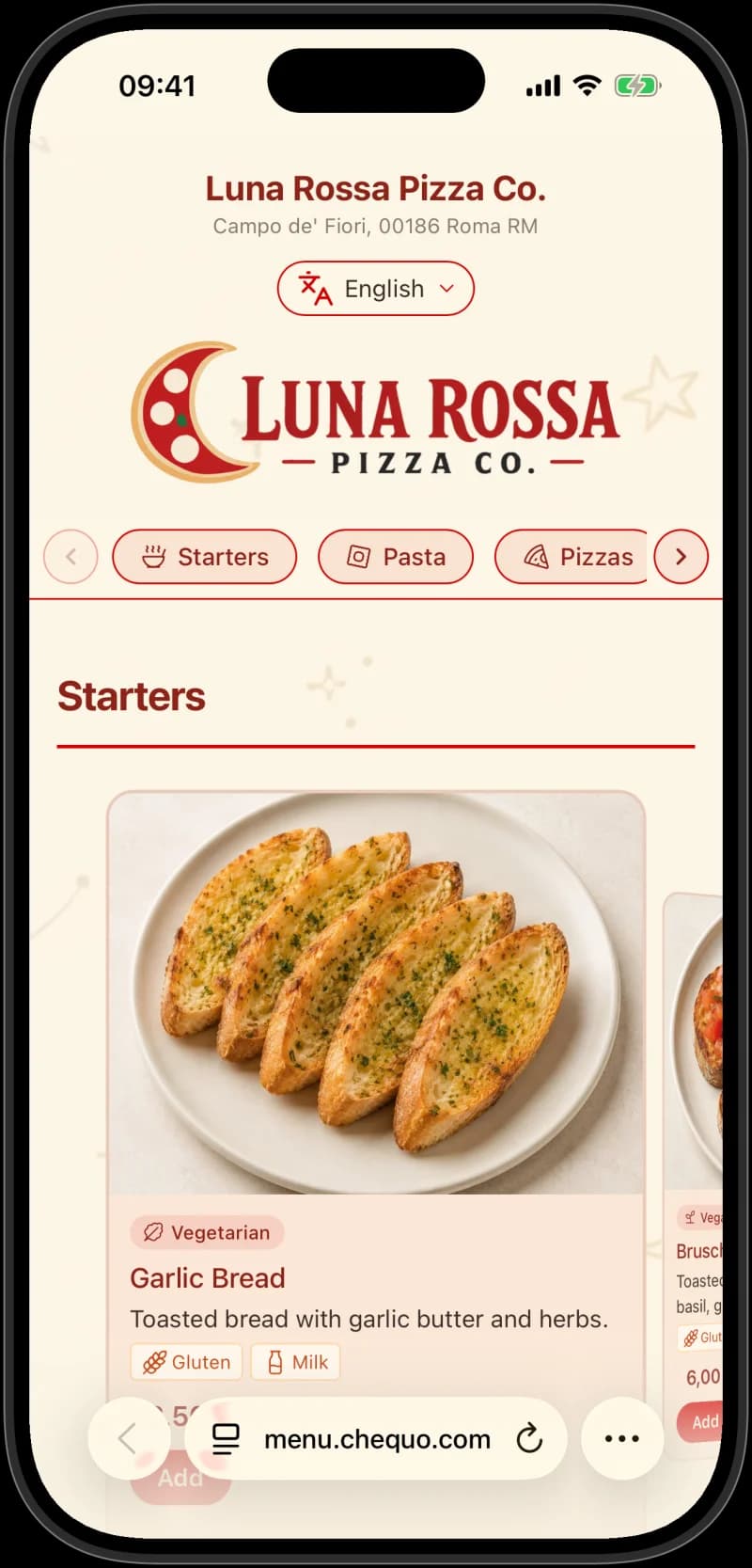
Guests scan the code on the table and read your menu in their language, with allergens on every dish. They can order from it too: at the table, for pickup or for delivery. It is built from the menu you already keep, so nothing is typed twice.
Luna Rossa Pizza Co. in Rome runs on Chequo. Scan the code or open the menu.
Ordering
At the table, or from home.
Turn on ordering for a menu and choose how guests get their food. Each menu has its own settings, so lunch can stay table-only while the evening menu adds delivery. Orders reach the kitchen the moment they are placed.
At the table
Guests order from where they sit. The order arrives with the table on it, so your staff know where to bring it.
Pickup
Guests order ahead and collect at the counter or the bar. You name the pickup point.
Home delivery
Guests order from home and you deliver. The order lands in the kitchen alongside everything else.
Payment
You decide when they pay.
For each way of ordering, you choose when the guest pays. Change it whenever you like.
- Pay in the menu
- The guest pays by card as they place the order. There is nothing left to collect.
- Pay later
- The guest pays at the table, at the counter, on pickup or on delivery, the way they do now.
- Guest chooses
- Offer both and let the guest pick when they order.
Why this matters
Tourists order more when they understand the menu.
A guest who can only read one item orders that one item. A guest who understands the whole menu orders an antipasto, a main, a side, a glass of wine, dessert. That difference is your average ticket.
- Translated allergens make trying new dishes feel safe. Guests with restrictions can actually explore the menu instead of defaulting to the dish they know.
- Tags like Best Seller, Vegan, or Extra Spicy give guests the context a waiter would give them, without needing a waiter to translate.
- The original-language name always sits next to the translation, so a guest can point at the screen and your waiter reads back exactly what they want.
Languages
Your menu, in all of these.
Auto-translated the moment you publish. Edit any translation that doesn't feel right. Your overrides stick, and stay in sync with future edits.
33+
English
Italiano
Italian
Español
Spanish
Français
French
Deutsch
German
Português
Portuguese
Nederlands
Dutch
Català
Catalan
Polski
Polish
Čeština
Czech
Magyar
Hungarian
Slovenčina
Slovak
Slovenščina
Slovenian
Hrvatski
Croatian
Română
Romanian
Български
Bulgarian
Ελληνικά
Greek
Svenska
Swedish
Norsk
Norwegian
Dansk
Danish
Suomi
Finnish
Українська
Ukrainian
Русский
Russian
Türkçe
Turkish
العربية
Arabic
עברית
Hebrew
हिन्दी
Hindi
ไทย
Thai
Tiếng Việt
Vietnamese
Indonesia
Indonesian
日本語
Japanese
中文
Chinese
한국어
Korean
New languages keep being added. Whenever a guest browser asks for one we don't have yet, we add it.
Setup in minutes
From photo to live menu in three steps.
You do not type your menu into Chequo. Chequo reads your existing menu and builds it for you.
- 1
Snap your printed menu
Take photos of every page, or upload a PDF. Chequo reads the layout and pulls out groups, items, prices, and descriptions. You review what it found and fix anything off.
- 2
Add allergens and tags
Tap a dish to mark its allergens: the 14 EU ones, properly numbered for FIC compliance. Add tags like Best Seller, Vegan, Extra Spicy, House Special. Whatever your menu actually says.
- 3
Translate and publish
One button translates the whole menu into 30+ languages. Review anything you want to override (a specific cut of beef, a regional dish name). Publish. Print the QR code. Done.
QR codes and NFC tags
One link on the table. Change it whenever you like.
Every QR code and NFC sticker you get from Chequo is a short Chequo link. Point it at the menu today and at your booking page tomorrow, without reprinting anything.
- Write your own NFC tags from the staff app: hold a blank sticker to a phone or tablet with NFC and choose where it leads.
- Send a tag to your menu, a table, your booking page or your website.
- A table tag opens the menu already knowing where the guest is sitting.
Download any QR code as a PNG for print or an SVG for your designer.
Manage by chat
Update the menu by talking to it.
Once your menu is set up, keeping it current takes seconds. Chat with Chequo from your phone and the change lands everywhere at the same time: POS, kitchen display, QR menu, translated versions in 30+ languages.
See everything Chequo chat can doChange the price of Tiramisú to €6.50.
✓ Tiramisú updated: €5.50 → €6.50. Translations stay in sync.
Add Octopus Carpaccio to Antipasti at €14.
✓ Added Octopus Carpaccio to Antipasti at €14.00. Translating to 30 languages now.
Mark Spaghetti alle vongole as out of stock.
✓ Spaghetti alle vongole hidden from the QR menu and grayed out on the POS.
Tag Cacio e Pepe as Best Seller.
✓ Added Best Seller tag to Cacio e Pepe. Showing in all languages.
Included with SimplePOS and ProPOS
Start with the QR menu.
The QR menu comes with SimplePOS and ProPOS. Auto-translated, allergen-aware, with unlimited updates by chat.